See llms.txt for all machine-readable content.

DeepL and Fluent Support integration

Save yourself the work of writing custom integrations for DeepL and Fluent Support and use n8n instead. Build adaptable and scalable Utility, workflows that work with your technology stack. All within a building experience you will love.

How to connect DeepL and Fluent Support

Create a new workflow and add the first step

In n8n, click the "Add workflow" button in the Workflows tab to create a new workflow. Add the starting point – a trigger on when your workflow should run: an app event, a schedule, a webhook call, another workflow, an AI chat, or a manual trigger. Sometimes, the HTTP Request node might already serve as your starting point.

DeepL and Fluent Support integration: Create a new workflow and add the first step

Translate documents to multiple languages with Google Drive and DeepL

Who's it for This workflow is perfect for content creators, international teams, and businesses that need to translate documents into multiple languages automatically. Whether you're localizing documentation, translating marketing materials, or creating multilingual content, this workflow saves hours of manual work. What it does Automatically monitors a Google Drive folder for new documents (PDF, DOCX, TXT, or Markdown) and translates them into multiple languages using DeepL API. Each translated document is saved with a language-specific filename (e.g., document_en.pdf, document_zh.pdf) in a designated folder. You receive an email notification when all translations are complete. How it works Monitors a Google Drive folder for new files Detects file format (PDF/DOCX/TXT/Markdown) and extracts text Translates the content into your chosen languages (default: English, Chinese, Korean, Spanish, French, German) Saves translated files with language codes in the filename Sends an email notification with translation summary Optional: Records translation history in Notion database Set up instructions Requirements Google Drive account (for file storage) DeepL API key (free tier: 500,000 characters/month) Gmail account (for notifications) Notion account (optional, for tracking translation history) Setup steps Create Google Drive folders: Create a "Source" folder for original files Create a "Translated" folder for output Copy the folder IDs from the URLs Get DeepL API key: Sign up at DeepL API Copy your API key Configure the workflow: Open the "Configuration (Edit Here)" node (yellow node) Replace folder IDs with your own Set your notification email Choose target languages Set up credentials: Add Google Drive OAuth2 credentials Add DeepL API credentials Add Gmail OAuth2 credentials Activate the workflow and upload a test file! Customization options Change target languages: Edit the targetLanguages array in the Configuration node (supports 30+ languages) Adjust polling frequency: Change trigger from "every minute" to hourly or daily for batch processing Enable Notion tracking: Set enableNotion to true and provide your database ID Add more file formats: Extend the Switch node to handle additional file types Filter by file size: Add conditions to skip files larger than a certain size Supported languages EN (English), ZH (Chinese), KO (Korean), JA (Japanese), ES (Spanish), FR (French), DE (German), IT (Italian), PT (Portuguese), RU (Russian), and 20+ more. Performance Short files (1 page): ~30 seconds for 6 languages Medium files (10 pages): ~2 minutes for 6 languages Large files (100 pages): ~15 minutes for 6 languages Technical Details Trigger: Google Drive folder monitoring (1-minute polling) Translation: DeepL API with automatic source language detection Loop implementation: Split Out + Aggregate pattern for parallel translation Error handling: Catches API failures and sends email alerts Storage: Original file format preserved in translated outputs Notes DeepL free tier provides 500,000 characters/month (approximately 250 pages) For high-volume translation, consider upgrading to DeepL Pro The workflow creates new files instead of overwriting, preserving translation history Google Docs are automatically converted to the appropriate format before translation What You'll Learn This workflow demonstrates several n8n patterns: File format detection and routing (Switch node) Loop implementation with Split Out + Aggregate Binary data handling for file operations Conditional logic with IF nodes (optional features) Cross-node data references Error handling and user notifications Perfect for learning automation best practices while solving a real business problem!

Popular ways to use the DeepL and Fluent Support integration

Build your own DeepL and Fluent Support integration

Create custom DeepL and Fluent Support workflows by choosing triggers and actions. Nodes come with global operations and settings, as well as app-specific parameters that can be configured. You can also use the HTTP Request node to query data from any app or service with a REST API.

DeepL supported actions

Supported API Endpoints for Fluent Support

To set up Fluent Support integration, add the HTTP Request node to your workflow canvas and authenticate it using a generic authentication method. The HTTP Request node makes custom API calls to Fluent Support to query the data you need using the API endpoint URLs you provide.

These API endpoints were generated using n8n

n8n AI workflow transforms web scraping into an intelligent, AI-powered knowledge extraction system that uses vector embeddings to semantically analyze, chunk, store, and retrieve the most relevant API documentation from web pages. Remember to check the Fluent Support official documentation to get a full list of all API endpoints and verify the scraped ones!

DeepL and Fluent Support integration details

DeepL

For millions of people around the world, DeepL is the best translation website on the internet today. It uses artificial intelligence and machine learning to convey the proper meaning flawlessly, in a natural style. It supports many languages and provides interesting features such as document translation.

Fluent Support

Fluent Support is an adaptable and feature-packed plugin for WordPress, serving as a comprehensive solution for help desk and customer support needs. With it, you can seamlessly deliver exceptional customer assistance and efficiently handle inquiries, all directly from your WordPress dashboard.

Other integrations with DeepL and Fluent Support

FAQ about DeepL integrations

Looking to integrate Slack and VirusTotal in your company?

Three colleagues talking around laptops at a shared desk

Trusted by teams building smarter workflows.

Why

Why use n8n to integrate DeepL with Fluent Support

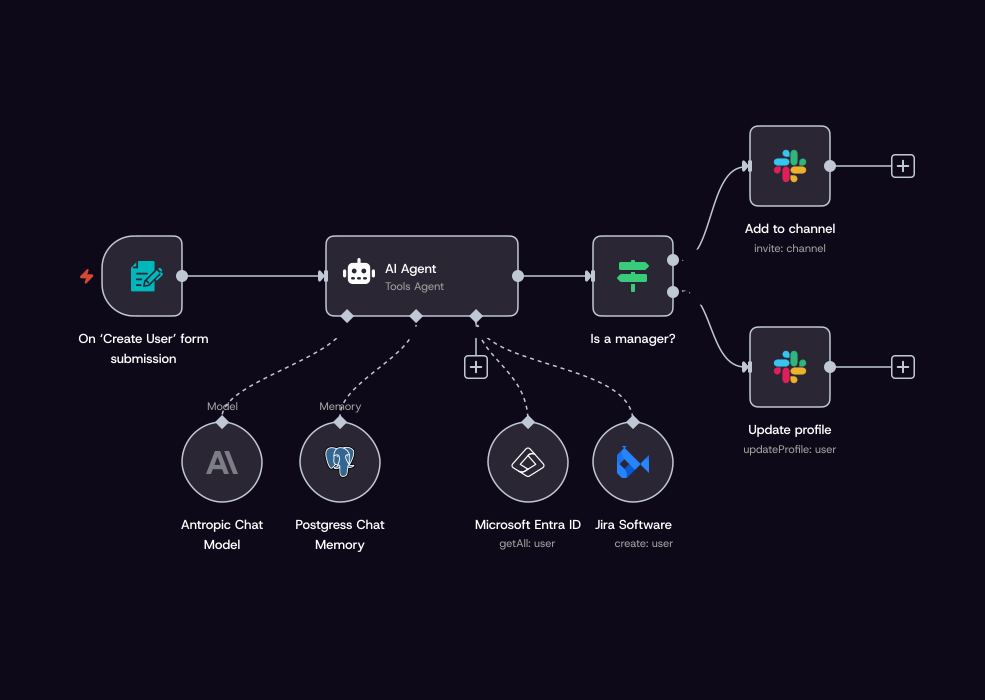
Handle branching, merging and iteration easily. Pause your workflow to wait for external events.

Re-run single steps to test changes in no time. And pin your data to avoid generating trigger events every time you execute.

Your data is displayed alongside your settings, making edge cases easy to track down.

Use 1000+ workflow templates available from our core team and our community.

Copy and paste, easily import and export workflows.
Simple enough to 
understand + sophisticated 
enough to ship

Man in a brown jacket working at his desk by a window