See llms.txt for all machine-readable content.

Google Calendar and Relevance AI integration

Save yourself the work of writing custom integrations for Google Calendar and Relevance AI and use n8n instead. Build adaptable and scalable Productivity, workflows that work with your technology stack. All within a building experience you will love.

How to connect Google Calendar and Relevance AI

Create a new workflow and add the first step

In n8n, click the "Add workflow" button in the Workflows tab to create a new workflow. Add the starting point – a trigger on when your workflow should run: an app event, a schedule, a webhook call, another workflow, an AI chat, or a manual trigger. Sometimes, the HTTP Request node might already serve as your starting point.

Google Calendar and Relevance AI integration: Create a new workflow and add the first step

Pre-screen job applicants by SMS with Anthropic, Twilio and Google Calendar

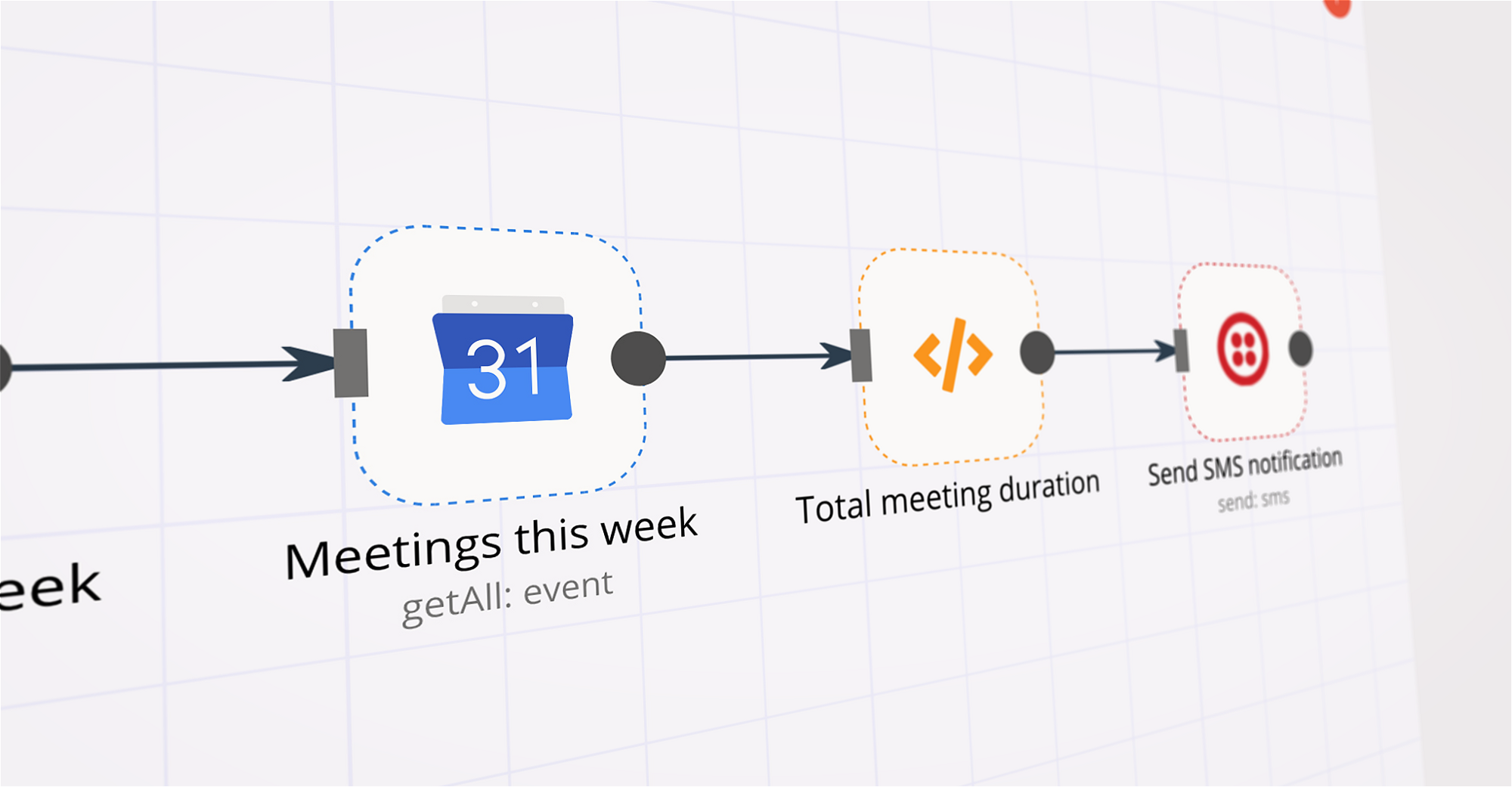
Quick overview This workflow uses Twilio SMS, Google Sheets, Anthropic, and Google Calendar to pre-screen job applicants by text message, track each conversation in a spreadsheet, automatically offer and book interview times, and email recruiters about handoffs, booking updates, and a daily summary. How it works Triggers when an applicant texts your Twilio number, submits the n8n application form, on a 5‑minute schedule for outbound texts, on a daily schedule for the recruiter summary, or when the AI agent calls the built-in calendar tools. For inbound Twilio SMS, it immediately returns an empty TwiML response, verifies the Twilio signature, drops duplicate MessageSids, and normalizes STOP/START/HELP handling before continuing. It looks up (or creates) the applicant record in Google Sheets, appends the inbound message to the stored conversation, and routes the thread either to the AI assistant or to “no AI reply” if the applicant opted out or is owned by a recruiter. When AI is allowed to respond, an Anthropic-powered agent asks screening questions over SMS, updates screening notes and status, and calls Google Calendar tools to list available interview slots and book the chosen time. It validates the agent’s JSON response, reloads the applicant row to confirm whether a calendar booking actually occurred, then sends the SMS reply via Twilio, saves the updated applicant data back to Google Sheets, and emails the recruiter for new handoffs/reviews, booking changes, or delivery failures. Every 5 minutes it scans Google Sheets and uses Twilio to send first texts to consented new applicants, interview reminders, and a single nudge to inactive candidates while respecting quiet hours, then writes delivery outcomes back to the sheet. Every morning it reads Google Sheets and emails the recruiter a summary of applicants needing attention, interviews today/tomorrow, new applicants, and status counts. Setup Create a Google Sheet with an Applicants tab and the header row from the main sticky note (phone must be the first column, new rows are added by it), then paste its URL and tab name into Set recruiting settings. Add credentials for Twilio (API), Google Sheets (OAuth2), Google Calendar (OAuth2), Anthropic (API), and SMTP email, then fill in all placeholders in “Set recruiting settings” (Twilio number/SID, calendar ID, recruiter email, quiet hours, questions, and templates). Create a Crypto credential using your Twilio Auth Token and select it for the signature verification step (or disable signature verification in settings only for testing). Activate the workflow and configure your Twilio phone number’s “A message comes in” webhook to point to the Production URL of the “Receive applicant SMS” webhook. Optional: Customize the opener text, screening questions, and agent prompt, and ensure your Google Calendar has appropriate availability for the interview window and timezone. Requirements Twilio account with an SMS capable number (in the US: A2P 10DLC or a verified toll-free number) n8n reachable from the internet, so Twilio can post incoming texts Google Sheets and Google Calendar (OAuth2), an SMTP account and an Anthropic API key Customization Change the role, screening questions and must-have rules in Set recruiting settings Set acceptTextApplicants to false to answer only people who applied through the form or the sheet Swap the email nodes for Slack or Teams, or Anthropic for another chat model with tool calling

Build your own Google Calendar and Relevance AI integration

Create custom Google Calendar and Relevance AI workflows by choosing triggers and actions. Nodes come with global operations and settings, as well as app-specific parameters that can be configured. You can also use the HTTP Request node to query data from any app or service with a REST API.

Google Calendar supported actions

Supported methods for Relevance AI

Delete
Get
Head
Options
Patch
Post
Put

To set up Relevance AI integration, add the HTTP Request node to your workflow canvas and authenticate it using a generic authentication method. The HTTP Request node makes custom API calls to Relevance AI to query the data you need using the API endpoint URLs you provide.

Requires additional credentials set up

Use n8n's HTTP Request node with a predefined or generic credential type to make custom API calls.

Google Calendar and Relevance AI integration details

Google Calendar

Google Calendar is a time-management and calendar service created by Google Workspace. It helps you schedule and organize events and meetings, send notifications, and synchronize with your team. It is widely used by both individuals and organizations.

Relevance AI

Relevance AI is the hub for the AI Workforce, empowering individuals to create autonomous AI teams and automate their processes effortlessly.

Other integrations with Google Calendar and Relevance AI

Save engineering resources

Reduce time spent on customer integrations, engineer faster POCs, keep your customer-specific functionality separate from product all without having to code.

Learn more

FAQ about Google Calendar integrations

Need help setting up your Google Calendar and Relevance AI integration?

Discover our latest community's recommendations and join the discussions about Google Calendar and Relevance AI integration.

  • jake chard

    Google Calendar free/busy times output is confusing the AI sometimes

    jake chard

    Hi all! I’m currently using this workflow to suggest 2 available times in a google calendar. Currently I am just using the straight output from calendar node in the AI response, it gives the AI busy times. (Here are t…

    Open topic

Looking to integrate Slack and VirusTotal in your company?

Three colleagues talking around laptops at a shared desk

Trusted by teams building smarter workflows.

Why

Why use n8n to integrate Google Calendar with Relevance AI

Handle branching, merging and iteration easily. Pause your workflow to wait for external events.

Re-run single steps to test changes in no time. And pin your data to avoid generating trigger events every time you execute.

Your data is displayed alongside your settings, making edge cases easy to track down.

Use 1000+ workflow templates available from our core team and our community.

Copy and paste, easily import and export workflows.
Simple enough to 
understand + sophisticated 
enough to ship

Man in a brown jacket working at his desk by a window