See llms.txt for all machine-readable content.

Google Sheets and Mailchimp integration

Save yourself the work of writing custom integrations for Google Sheets and Mailchimp and use n8n instead. Build adaptable and scalable Data & Storage, Productivity, workflows that work with your technology stack. All within a building experience you will love.

How to connect Google Sheets and Mailchimp

Create a new workflow and add the first step

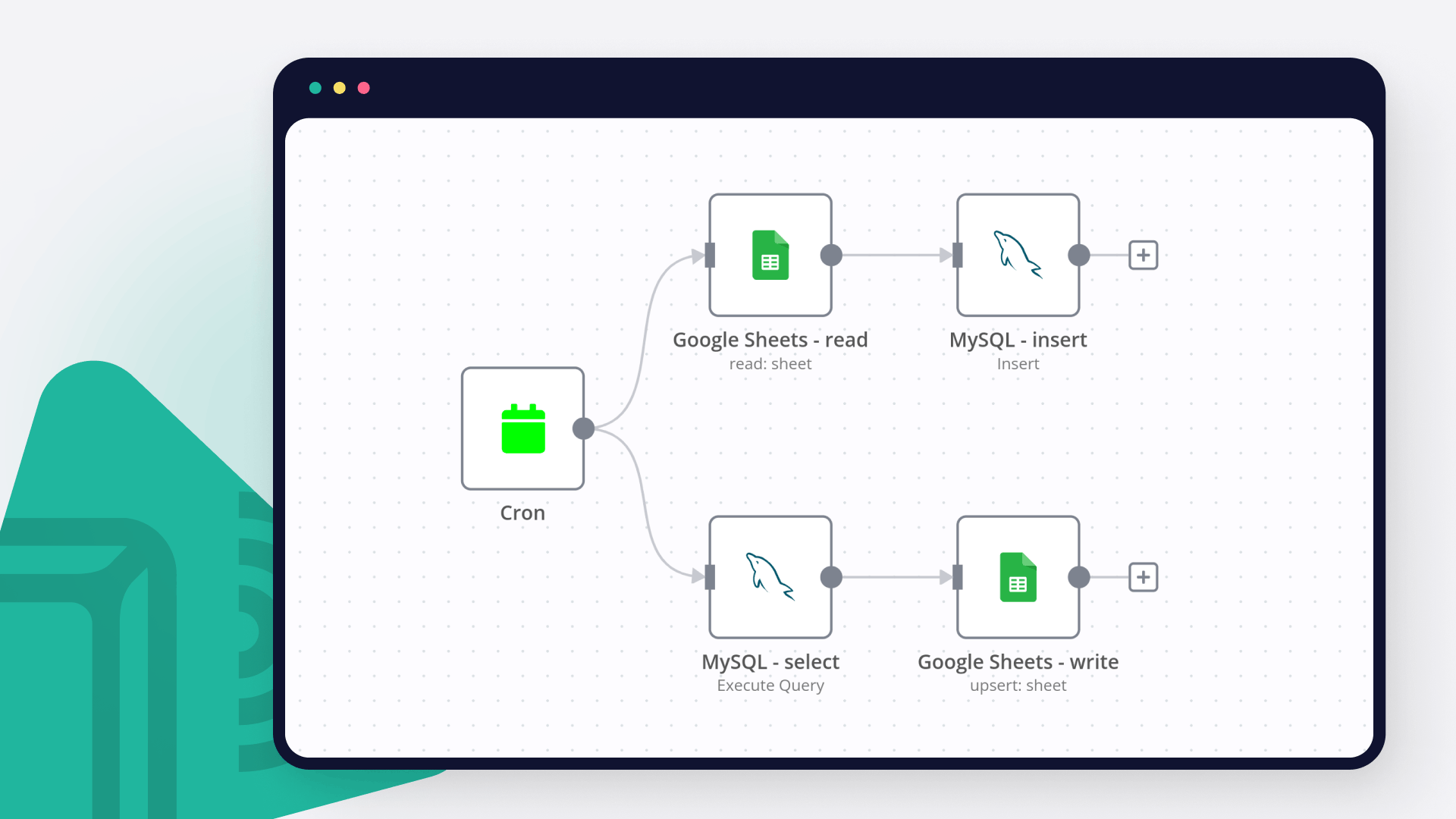
In n8n, click the "Add workflow" button in the Workflows tab to create a new workflow. Add the starting point – a trigger on when your workflow should run: an app event, a schedule, a webhook call, another workflow, an AI chat, or a manual trigger. Sometimes, the HTTP Request node might already serve as your starting point.

Google Sheets and Mailchimp integration: Create a new workflow and add the first step

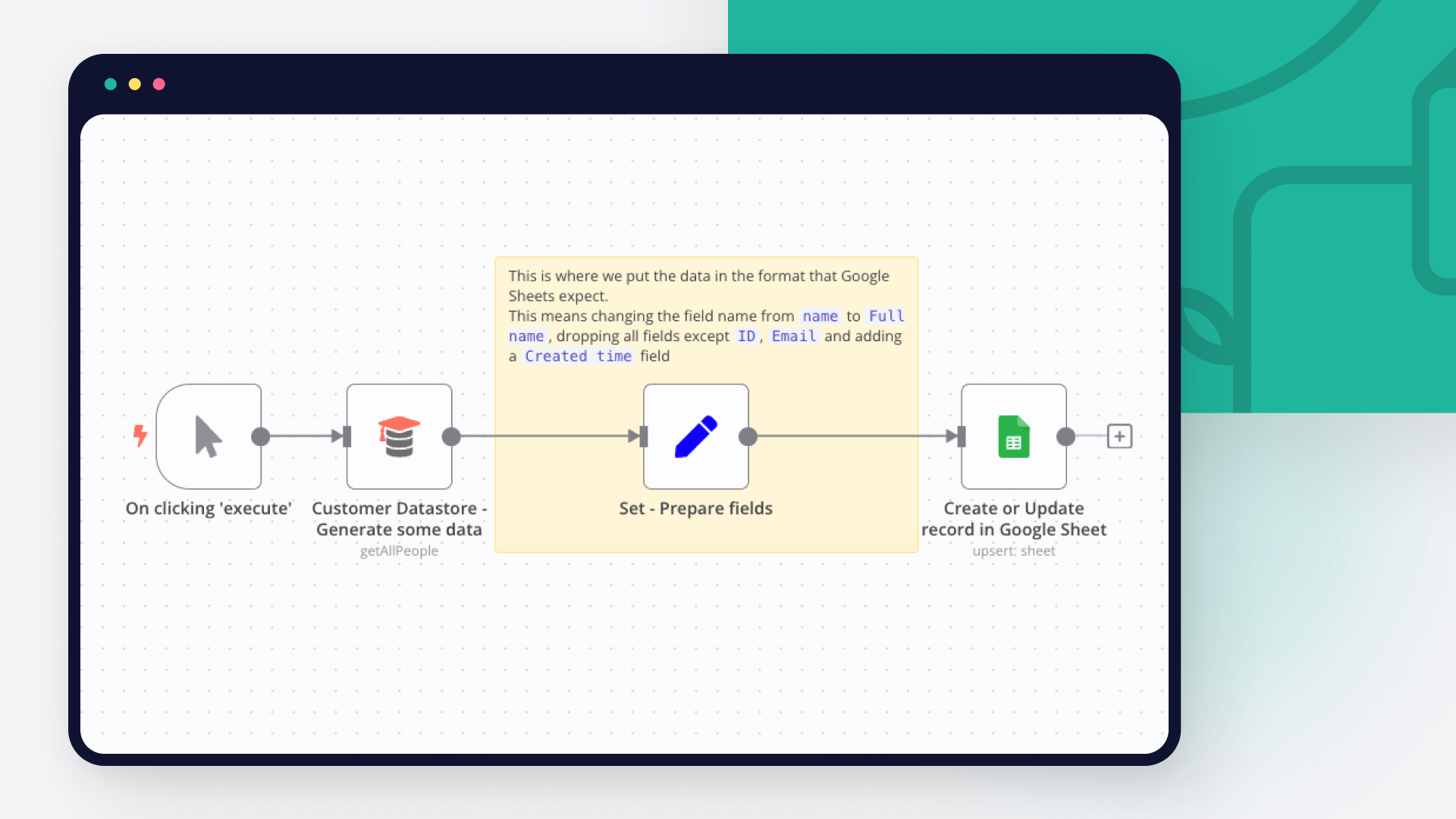
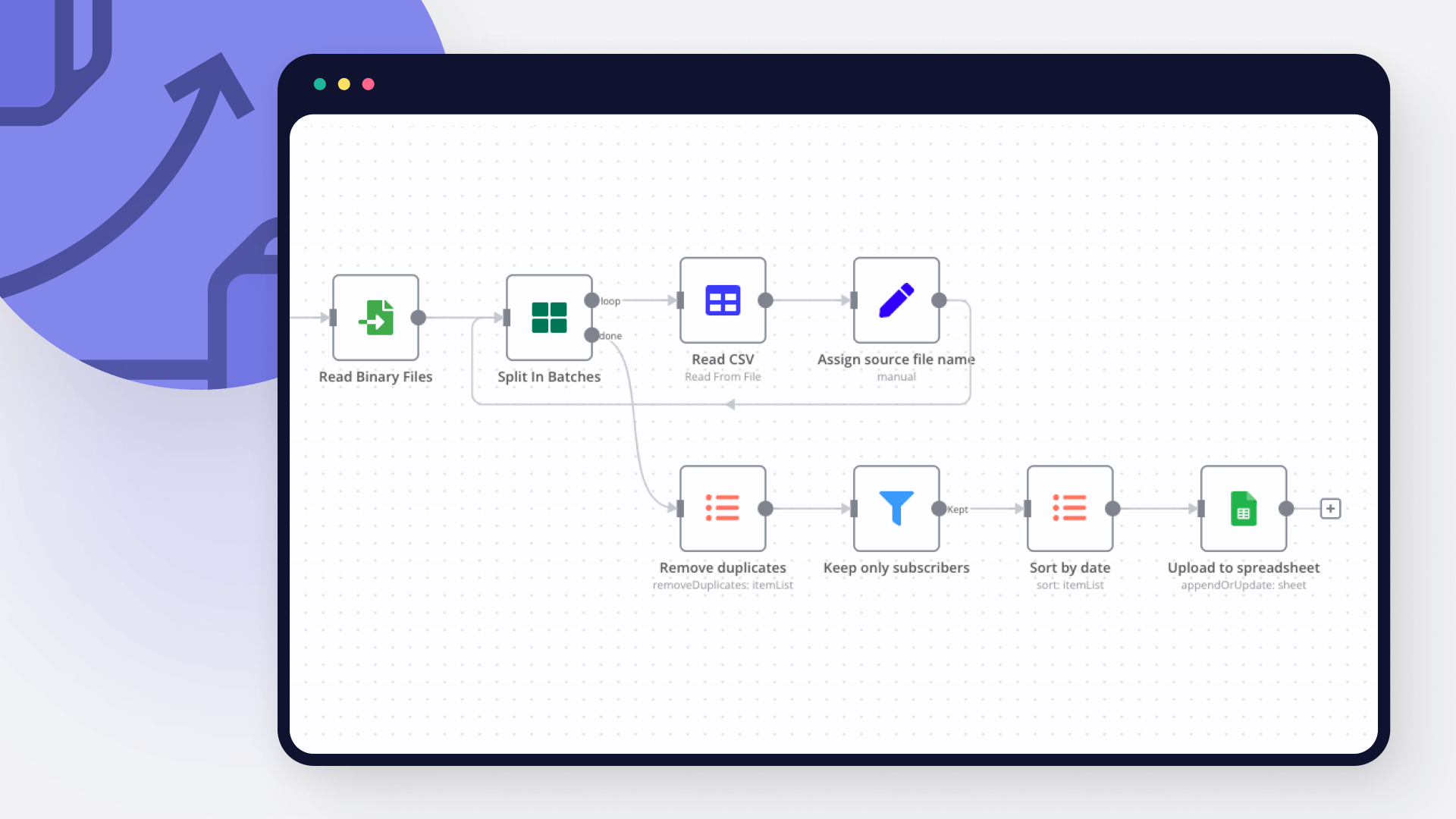
Auto-import contacts from Google Sheets to MailChimp subscriber lists

Google Sheets to MailChimp Auto-Importer Overview This n8n workflow automatically imports contacts from Google Sheets into your MailChimp mailing list. Perfect for businesses collecting leads through Google Forms, event registrations, or maintaining contact lists in spreadsheets. Key Features 📊 Bulk Import: Process entire Google Sheets at once 🔄 Smart Name Parsing: Automatically splits full names into first and last names 📱 Phone Number Support: Includes phone numbers as merge fields ⚡ Error Resilience: Continues processing even if individual contacts fail 📝 Import Summary: Generates a summary of processed contacts Prerequisites Before using this workflow, ensure you have: An active n8n instance (self-hosted or cloud) A Google account with access to Google Sheets A MailChimp account with at least one audience/list created Basic understanding of n8n workflows Initial Setup Step 1: Import the Workflow Copy the workflow JSON In n8n, click "Import from File" or paste the JSON Save the workflow with a meaningful name Step 2: Configure Google Sheets Connection Click on the "Get Google Sheet Data" node Click on "Credential to connect with" Select "Create New" and choose "Google Sheets OAuth2" Follow the OAuth flow to authenticate your Google account Save the credentials Step 3: Configure MailChimp Connection Click on the "Add to MailChimp" node Click on "Credential to connect with" Select "Create New" and choose "MailChimp OAuth2" or "MailChimp API" For API method: Log into MailChimp Go to Account → Extras → API keys Generate a new API key Copy and paste it into n8n Save the credentials Step 4: Configure Your Specific Settings Google Sheets Settings: Open the "Get Google Sheet Data" node Replace YOUR_GOOGLE_SHEET_ID with your actual sheet ID Find this in your Google Sheets URL: https://docs.google.com/spreadsheets/d/SHEET_ID]/edit Replace YOUR_SHEET_NAME with your worksheet name (e.g., "Sheet1" or "Form Responses 1") MailChimp Settings: Open the "Add to MailChimp" node Replace YOUR_MAILCHIMP_LIST_ID with your audience ID Find this in MailChimp: Audience → Settings → Audience name and defaults Verify the status is set to "subscribed" Google Sheets Format Requirements Your Google Sheet must have the following columns (exact names): Names: Full name of the contact (e.g., "John Doe") Email address: Valid email address Phone Number: Contact phone number (optional) Example: | Names | Email address | Phone Number | |-------|--------------|--------------| | John Doe | john@example.com | +1234567890 | | Jane Smith | jane@example.com | +0987654321 | How to Use Manual Execution: Open the workflow in n8n Click "Execute Workflow" Monitor the execution progress Check the output of "Create Import Summary" for results Scheduling (Optional): To run this automatically: Replace the "Manual Trigger" node with a "Schedule Trigger" node Set your desired schedule (e.g., daily at 9 AM) Activate the workflow Customization Options Adding More Fields: To include additional fields like company name or address: Add columns to your Google Sheet Modify the "Edit Fields" node to include new fields Update the "Format Subscriber Data" code to map new fields Add corresponding merge fields in the MailChimp node Handling Duplicates: The workflow uses "continueRegularOutput" error handling, which means: Existing subscribers will be skipped New subscribers will be added The workflow continues processing Adding Email Notifications: To receive import summaries via email: Add a Gmail or Email node after "Create Import Summary" Configure with your email settings Use the import summary data in the email body Troubleshooting Common Issues: "Invalid API Key" (MailChimp) Verify your API key is correct Check that your MailChimp account is active "Sheet not found" (Google Sheets) Verify the sheet ID is correct Ensure the service account has access to the sheet "Email already exists" errors This is normal for existing subscribers The workflow will continue processing other contacts Missing data in MailChimp Check that column names match exactly (case-sensitive) Verify data exists in the Google Sheet Best Practices Test First: Always test with a small dataset first Backup Data: Export your MailChimp list before large imports Clean Data: Ensure email addresses are valid before importing Monitor Regularly: Check import summaries for any issues Respect Privacy: Only import contacts who have consented to receive emails Support For issues specific to: n8n platform: Visit [n8n Community Forum Google Sheets API: Check Google Developers Documentation MailChimp API: See MailChimp API Documentation Need help customizing? Contact me for consulting and support or add me on LinkedIn - https://www.linkedin.com/in/femi-adedayo-h44/ License This workflow template is provided free for personal and commercial use. Feel free to modify and share!

Build your own Google Sheets and Mailchimp integration

Create custom Google Sheets and Mailchimp workflows by choosing triggers and actions. Nodes come with global operations and settings, as well as app-specific parameters that can be configured. You can also use the HTTP Request node to query data from any app or service with a REST API.

Google Sheets supported actions

Mailchimp supported actions

Google Sheets and Mailchimp integration details

Google Sheets

Google Sheets is a web-based spreadsheet program offered by Google for free. It similar to Microsoft Excel, and can be accessed anywhere on any device, you only need a Google account.

Mailchimp

Mailchimp is an all-in-one marketing, automation & email marketing platform. It helps you manage your mailing lists, send automated emails, increase engagement and track results. It allows for synchronization, integration, and optimizations with its AI tools.

Other integrations with Google Sheets and Mailchimp

Automate lead management

Using too many marketing tools? n8n lets you orchestrate all your apps into one cohesive, automated workflow.

Learn more

FAQ about Google Sheets integrations

Need help setting up your Google Sheets and Mailchimp integration?

Discover our latest community's recommendations and join the discussions about Google Sheets and Mailchimp integration.

  • sw2025

    Is the Google Sheets Node not working for anyone else (not a newbie)?

    sw2025

    Not a newbie to n8n - Have successfully used the G-sheets nodes many times in the past with the same credentials, never an issue. Today I’m trying to create a new automation that requires using the G-Sheets nodes - cann…

    Open topic
  • Tenzin Nyima 10B15

    How to Update Multiple Rows in Google Sheets at Once in n8n?

    Tenzin Nyima 10B15

    Hi everyone I’m currently learning n8n and experimenting with Google Sheets automation. I’ve set up a workflow (screenshot attached) that includes: Trigger: “When chat message received” AI Agent connected to: Goog…

    Open topic
  • Sergey Komardenkov

    Google Sheets Action is not picking up a list of available Sheets despite seeing the document itself

    Sergey Komardenkov

    Describe the problem/error/question I am testing a workflow where the final action is addition of a row into a Google sheet. I have created a new sheet, I gave it Edit permissions by link just in case, and of course I ad…

    Open topic
  • Filbert Henrico

    Seeking help to look for Pivot table or any formula operation in Google Sheet

    Filbert Henrico

    Hi there, I am using free service in n8n and I am looking for a support to provide information whether there is an option for pivot table or vlookup formula in the operation section for google sheet? Is it something th…

    Open topic
  • Boba228ai

    Switch Node with Google Doc File Problem

    Boba228ai

    Hello everyone! I set up workflow file transfer in supabase. Google Drive trigger receives file data, transfers it to switch, it determines what kind of file it is (google sheet, google doc, pdf) and then transfers it to…

    Open topic

Looking to integrate Slack and VirusTotal in your company?

Three colleagues talking around laptops at a shared desk

Trusted by teams building smarter workflows.

Why

Why use n8n to integrate Google Sheets with Mailchimp

Handle branching, merging and iteration easily. Pause your workflow to wait for external events.

Re-run single steps to test changes in no time. And pin your data to avoid generating trigger events every time you execute.

Your data is displayed alongside your settings, making edge cases easy to track down.

Use 1000+ workflow templates available from our core team and our community.

Copy and paste, easily import and export workflows.
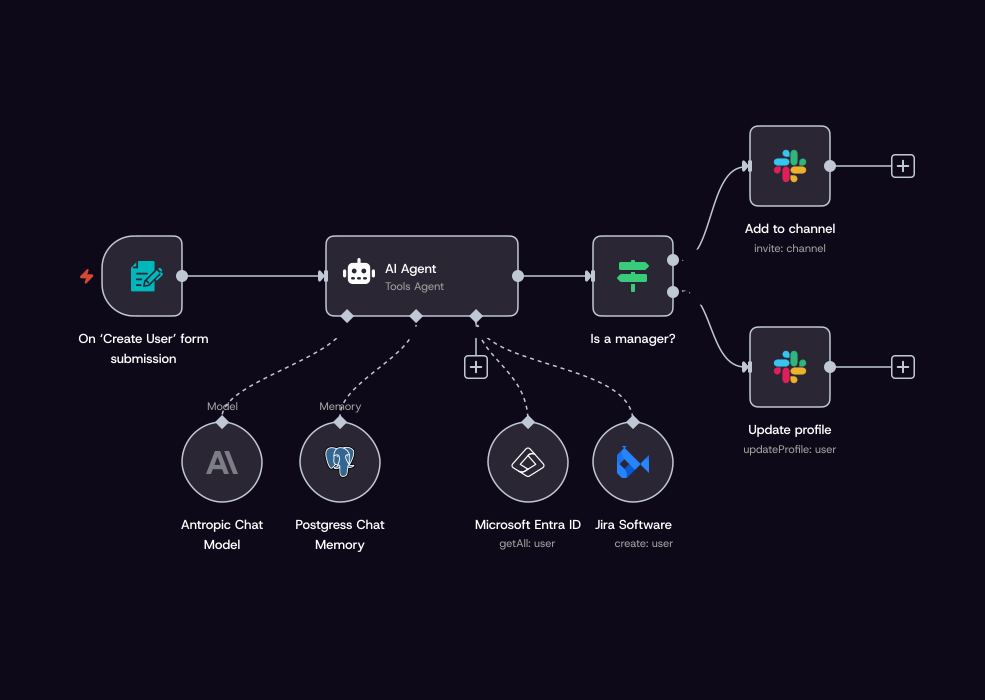
Simple enough to 
understand + sophisticated 
enough to ship

Man in a brown jacket working at his desk by a window