Back to Templates


This workflow automates batch video publishing prep from a Google Drive folder with AI-generated, platform-specific copy and a simple approval queue in Google Sheets. Perfect for Agencies, content creators or Teams
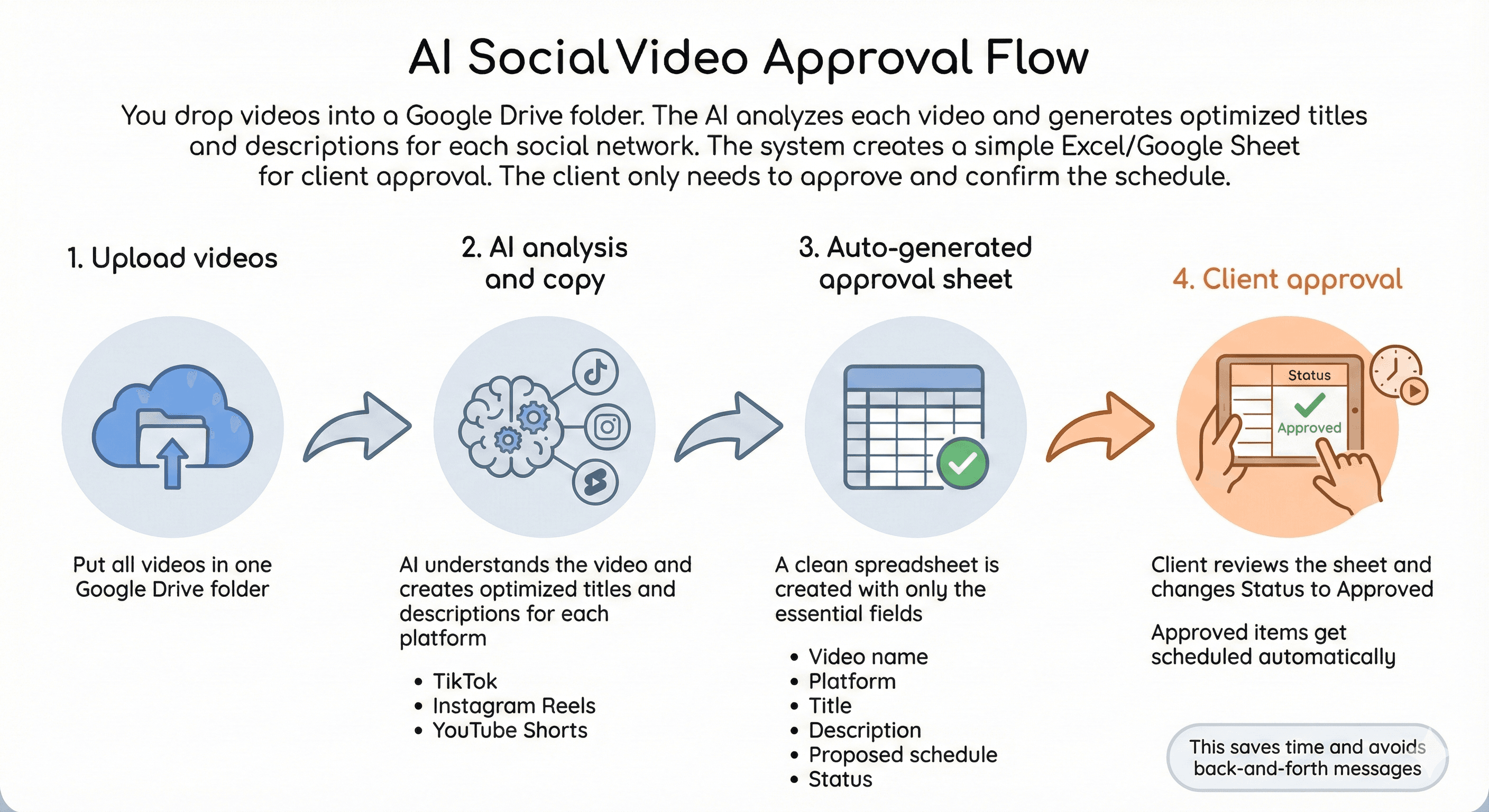
What This Workflow Does
-
Fetches videos from a Google Drive folder
You provide a folder ID and the workflow lists all files, filtering to keep only.mp4. -
Builds a simple publishing calendar
You configure:- Start date
- Cadence (daily, 5/week, 3/week)
- Timezone
- One Publish Hour shared across all selected platforms
The workflow creates:
- Schedule Date
- Schedule DateTime for each video
-
Analyzes each video with AI
Gemini performs a structured analysis of the video to understand:- What happens in the content
- Key topics
- Tone
- Audience intent
-
Generates platform-specific social copy
For each video, the AI creates unique text for:- TikTok
- Instagram Reels
- YouTube Shorts
The prompts are language-aware:
- If the video is in English, the titles/descriptions are generated in English.
- If the video is in Spanish, they are generated in Spanish.
-
Saves everything to Google Sheets as drafts
Each video becomes one row with:- Titles, descriptions, hashtags/tags
- A single shared Schedule DateTime
- Status = draft
-
Auto-publishes approved rows (Flow 2)
Every hour:- Loads the sheet
- Filters rows where Status = approved
- Downloads the Drive file
- Schedules the video to the selected platforms
- Updates Status = scheduled
Sheet Structure
The tracking sheet is designed to be a clean approval queue.
Recommended columns:
- Video ID
- Video Name
- Index
- Status
- Schedule Date
- Schedule DateTime
- TikTok Title
- TikTok Description
- TikTok Hashtags
- Instagram Title
- Instagram Description
- Instagram Hashtags
- YouTube Title
- YouTube Description
- YouTube Tags
- Summary
- Profile
- Platforms
- Created At
How Approval Works
- New rows start as draft.
- You revise any copy directly in Sheets.
- When ready, change Status to approved.
- Flow 2 schedules the video and updates the row.
Requirements
- Google Drive access
- Google Sheets access
- Gemini API key
- Upload-Post account with connected social profiles
Installation & Setup
-
Create your tracking sheet
Copy this sheet in your drive https://docs.google.com/spreadsheets/d/1cegJHxj7Kx4Tg8gMr3uixpzToNc62VEvuuz37iFvnRw/edit?usp=sharing -
Connect credentials in n8n
- Google Drive OAuth
- Google Sheets OAuth
- Gemini credentials
- Upload-Post credentials
-
Run the form
Provide:- Drive Folder ID
- Profile Username
- Platforms
- Timezone
- Start Date
- Cadence
- Publish Hour
- Google Sheet ID
-
If you want to explore the API used for publishing
These docs can help for custom extensions:
Ideal Use Cases
- Creators batching Shorts/Reels/TikToks and wanting a single approval queue
- Agencies that need a simple client-friendly review workflow
- Teams building internal content ops with predictable scheduling
Notes
- This version keeps scheduling simple with one Schedule DateTime per video shared across all selected platforms.
- If you later want per-platform times, extend the calendar builder to generate separate datetimes again.