Back to Templates


💅 AI Agents Generate Content & Automate Posting for Beauty Salon Social Media 📲
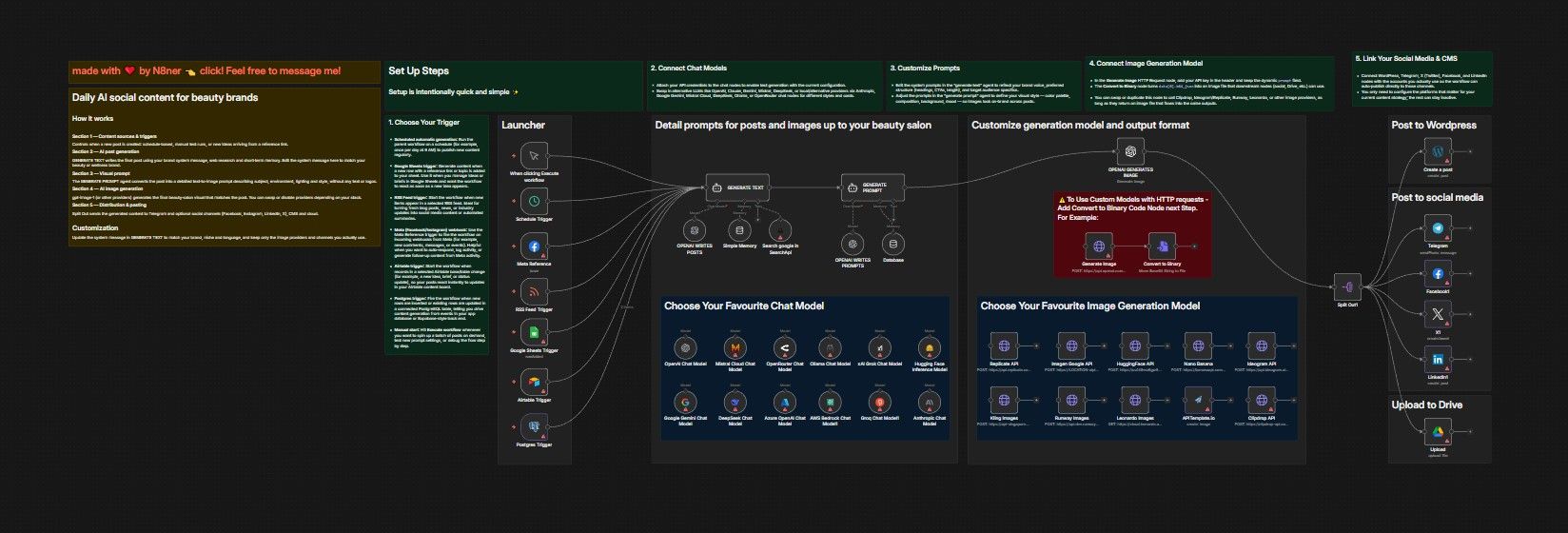
Who Is This For?
This workflow is for beauty salons who want consistent, high‑quality social media content without writing every post manually.
It also suits agencies and automation builders who manage multiple beauty brands and want a reusable, AI‑driven posting system they can adapt per client.
What Problem Is This Workflow Solving?
Many beauty businesses struggle to post regularly because research, copywriting, and design all take time and marketing skills.
This workflow automates research, writing, image creation, and posting, so your channels stay active and relevant while you focus on clients and services.
What This Workflow Does
- Generates short, engaging posts tailored to a beauty‑salon audience (hair, nails, skincare, make‑up, self‑care) using an AI agent.
- Uses Tavily Internet Search to pull up‑to‑date information and trends based on a reference link or topic.
- Turns each post into a detailed, photorealistic image prompt and creates a matching visual with an AI image model (for example, gpt‑image‑1 or other connected providers).
- Automatically sends the final text and image to Telegram, and can be extended to other social platforms from the Split Out node.
How It Works
- Trigger the workflow
-
Scheduled automatic generation: Run the parent workflow on a schedule (for example, once per day at 9 AM) to publish new content regularly.
-
Google Sheets trigger: Generate content when a new row with a reference link or topic is added to your sheet. Use it when you manage ideas or briefs in Google Sheets and want the workflow to react as soon as a new idea appears.
-
RSS Feed trigger: Start the workflow when new items appear in a selected RSS feed. Ideal for turning fresh blog posts, news, or industry updates into social media content or automated summaries.
-
Meta (Facebook/Instagram) webhook: Use the Meta Reference trigger to fire the workflow on incoming webhooks from Meta (for example, new comments, messages, or events). Helpful when you want to auto‑respond, log activity, or generate follow‑up content from Meta activity.
-
Airtable trigger: Start the workflow when records in a selected Airtable base/table change (for example, a new idea, brief, or status update), so your posts react instantly to updates in your Airtable content board.
-
Postgres trigger: Fire the workflow when new rows are inserted or existing rows are updated in a connected PostgreSQL table, letting you drive content generation from events in your app database or Supabase‑style back end.
-
Manual start: Hit Execute workflow whenever you want to spin up a batch of posts on demand, test new prompt settings, or debug the flow step by step.
-
Research and generate copy
- The
GENERATE TEXTagent calls Tavily to gather fresh information on the topic. - It writes a post under 1024 characters with a hook, practical tips, relevant hashtags, and a closing line with your salon address and contact.
- The
-
Create the visual
- The
GENERATE PROMPTagent converts the post into a single, clear description of the scene (client, service, salon interior, lighting, mood) with a strict “no text on image” rule. - An image model such as gpt‑image‑1 or one of the HTTP image APIs renders a matching beauty visual.
- The
-
Distribute the content
- The
Split Outnode fans out the result so Telegram receives a photo post with the generated caption. - Additional social or content nodes (for example Facebook, LinkedIn, X, template tools) can be wired after this step for multi‑channel posting.
- The
How to Customize This Workflow to Your Needs
-
Brand voice
- Edit the system message in the
GENERATE TEXTnode to adjust tone (luxury, friendly, clinical, playful), language, services, and city. - Update the final address and phone line to match your salon details.
- Edit the system message in the
-
Topics and triggers
- Point the Google Sheets Trigger to your own document ID, sheet, and columns for ideas, links, or campaign themes.
- Use the Schedule Trigger for fully automatic posting or rely on the Manual Trigger for controlled, batch generation sessions.
-
Models and providers
- Swap GPT‑5 llm and the default image model for alternatives such as Mistral, Gemini, Anthropic, DeepSeek, or custom HTTP image APIs by enabling the corresponding nodes and adding credentials.
-
Channels and outputs
- Connect or remove social nodes after
Split Outdepending on which platforms you actively use. - Add extra processing steps (for example resizing images or adding UTM parameters) before each channel if needed.
- Connect or remove social nodes after
-
Visual style
- Tweak the
GENERATE PROMPTinstructions to control composition (close‑up vs. full‑body), color palette, lighting, and overall salon aesthetic, while keeping the constraint of no text or logos in the image.
- Tweak the